How do I choose a ceiling fan that reverses with a phone app?
I walk you through my simple process for picking a smart, reversible ceiling fan that works well in real life. I focus on in-app reverse control, platform compatibility, and reliable 2.4 GHz Wi‑Fi so setup finishes fast and stays stable.
I compare built‑in smart models like HunterSMART and Hinkley against retrofit options like Fansio. Built-in units often include pre‑paired remotes and native integration with Apple HomeKit, Amazon Alexa, and Google Home. Retrofit receivers fit into the canopy and let you keep an existing fixture while adding voice and scheduling features.
I also cover what matters after installation: true dimming, usable speed steps, motor type, canopy space for receivers, and simple wiring checks. Finally, I preview the routines I use—schedules, shared access, and confirmation tones—so the product feels set and forget.
Key Takeaways
- Prioritize models with in‑app reverse control and 2.4 GHz Wi‑Fi for reliable range.
- Choose built‑in smart fans for seamless pairing or retrofit receivers to keep an existing fixture.
- Check dimming compatibility, actual speed steps, and motor quality for real comfort.
- Verify canopy space, pull‑chain locations, and wiring before buying or installing.
- Use schedules, shared access, and voice routines to simplify daily use.
Why I wrote this Buyer’s Guide for app-controlled, reversible ceiling fans
I wrote this guide because most product pages skip the real questions I had. Marketing often promises easy reversal and smooth voice control, but the real test is whether those features behave in daily use.
I tested HunterSMART, Hinkley, and Fansio to gather practical information. HunterSMART shows clear steps for Apple, Alexa, and Google, plus audible beeps when dimming is enabled. Hinkley uses sliders for direction, speed, and brightness and supports multi‑fan schedules. Fansio documents sync and reset steps after power loss and stresses 2.4 GHz and pull‑chain positions.
My aim was to build one useful page with the details you need: network requirements, pairing quirks, and what confirmation tones mean. I focus on controls that matter day to day—sliders, tap‑to‑reverse, and how routines behave across households.
- Real setup tests so you don’t guess which product is plug‑and‑play.
- Design and motor notes that affect comfort and energy.
- Clear, updated content that links setup realities to life at home.
How do I choose a ceiling fan that reverses with a phone app?
A tight checklist and a clear decision flow keep the purchase simple for me.
My quick checklist for getting the right smart ceiling fan:
- Verify in-app reverse control so direction is a one-tap toggle in the app.
- Confirm Alexa, Google, and Apple support for voice and shared access.
- Ensure 2.4 GHz Wi‑Fi and dimming compatibility with your LED bulbs.
- Review warranty, support pages, and clear setup steps (HomeKit code, Alexa skill, or Google link).
My decision flow: built-in smart vs add-on receiver
I favor built‑in smart models like HunterSMART and Hinkley 6‑speed DC when I want simple setup and tighter integration. Those connect directly via their app and expose direction, speed, and light controls.
For existing fixtures, an add‑on receiver works well. Hinkley 3/4‑speed fans can accept accessory receivers; Fansio’s universal receiver retrofits older fans and adds scheduling and voice control.
| Option | Ease of setup | Best for | Notes |
|---|---|---|---|
| Built‑in smart (HunterSMART, Hinkley DC) | Very easy | New installs or replacements | Direct app reverse, HomeKit/Alexa/Google support |
| Add‑on receiver (Hinkley accessory, Fansio) | Moderate | Retrofit existing fixtures | Check canopy space, pull‑chain positions, and wiring |
| Universal retrofit (Fansio) | Moderate | “Dumb” fans needing smart features | Offers scheduling and remote control via app |
I always test that the app exposes direction as a toggle, that speed sliders are granular, and that light dimming works with my bulbs. Then I build routines—turn fan on arrival and a bedtime dim scene—so the system pays off right away.
Make sure it works with your smart home: Alexa, Google, and Apple HomeKit
Make sure voice platforms and the vendor app play nicely together in your home. I verify platform support first so the device joins my routines without fuss.
HunterSMART integration: voice control for speed, light, and direction
Pair in the HunterSMART app, then link to Apple Home by scanning the HomeKit code found in the remote or manual. HomeKit exposes speed, light, and direction natively.
For Alexa, I enable the Hunter skill and remember to disable and re-enable it after renaming devices or changing passwords. For Google, I tap “Connect with Google” in the app and confirm the fan and light tiles appear.
Hinkley compatibility with Google, Alexa, and Siri
Hinkley’s app supports Google, Alexa, and Siri and uses sliders for direction, speed, and brightness. I use those sliders to fine tune comfort and to create schedules, timers, and grouped controls.
This makes daily voice control simple and keeps both fan and light separate for more flexible routines.
Fansio voice control options and syncing with the app
Fansio supports Alexa, Google, and Apple devices when the app is synced to your SSID and password. After power surges I may need to re-sync the remote.
Tip: I standardize device names like “Office Fan” and “Office Light” and test commands such as “set fan to high” and “turn on light” to confirm everything responds across platforms.
Network realities today: 2.4 GHz Wi‑Fi, pairing, and reliable operation
Network quirks are often the real reason smart devices refuse to pair. I start by insisting on 2.4 GHz because it reaches farther and penetrates walls better.
Why 2.4G matters: HunterSMART and Fansio modules use 2.4 GHz only. If pairing fails, make sure your phone is on that band before trying more steps.
Common fixes I use are simple and fast.
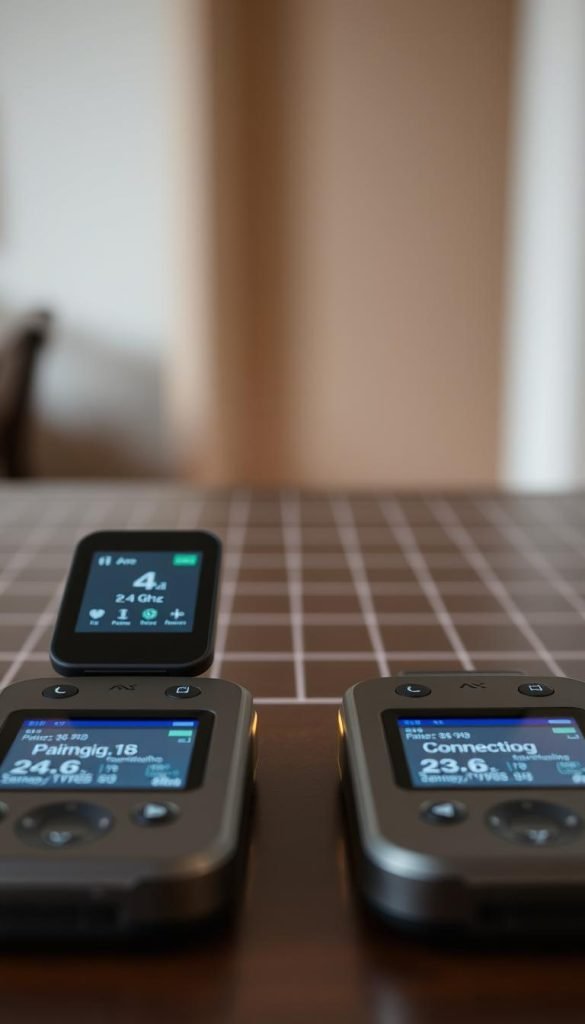
Pairing tips and quick fixes
- Power cycle at the wall for 10 seconds, then wait 10–15 seconds for the module to boot.
- If pairing stalls, check the router exposes a 2.4 GHz SSID you can select.
- Use a phone hotspot with the same SSID/password as your home network to provision the device, then switch back to the router.
- Press and hold the back button on a handheld remote until a long beep to reset or re‑pair.
Resync, resets, and naming
After a power surge I re‑sync remotes. For Fansio I toggle power and hold High+Low (or LEARN) for 5 seconds. If that fails, I perform the factory reset: five cycles of 3s off/3s on until the light blinks.
I standardize each device name and keep a short list of steps on my phone. If I rename a device, I sometimes disable and re‑enable the Alexa skill so the new name appears on the page and in routines.
| Issue | Quick action | When to factory reset |
|---|---|---|
| Cannot find SSID | Switch phone to 2.4 GHz or create matching hotspot | No SSID visible after retries |
| Module not responding | Power cycle 10s, wait 15s, retry pairing | Module never boots or repeats errors |
| Remote and app out of sync | Hold remote learn combo (Fansio: High+Low 5s) | Controls still mismatched after resync |
Motor, speeds, and airflow: what affects comfort and energy use
Motor type and the number of speed steps directly change comfort and energy use in any room.
DC vs AC motors: I prefer DC motors for quieter operation and precise control. DC units often offer six speeds, which helps me fine tune comfort and save energy.
AC motors can be reliable, but many offer only three or four speeds. If the range feels limited, I verify whether an add‑on receiver can unlock more options.
Airflow behavior and special modes
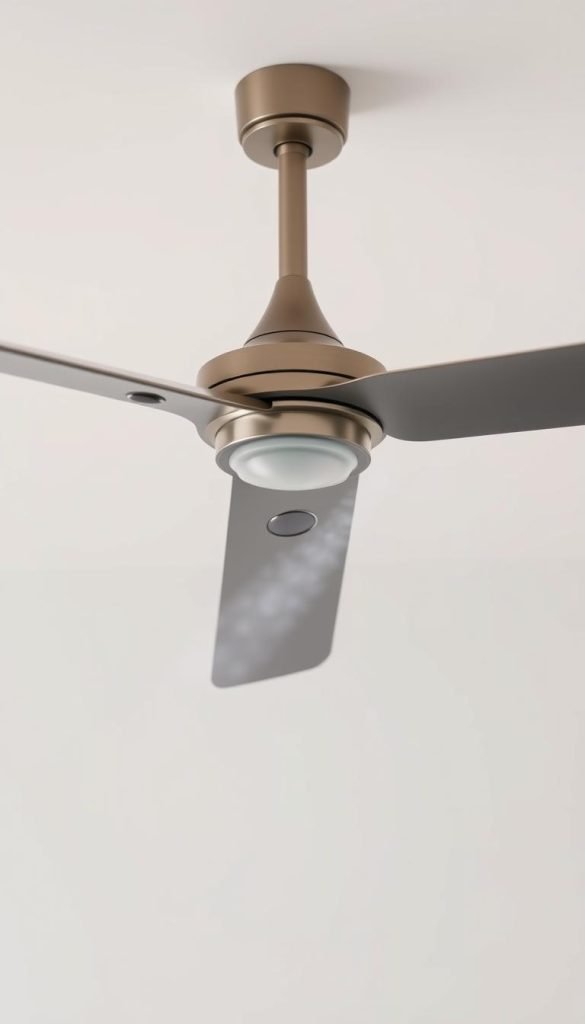
Features like HunterSMART’s SureSpeed give a stronger feel at higher settings. Hinkley’s breeze modes vary airflow over time to mimic natural wind, which I find less tiring during long use.
“I look for a profile that is quiet at low and powerful at high,” — a simple test I run in similar rooms.
- Check app granularity: ensure the interface exposes every available speed and fan speed step.
- Consider ceiling height and blade pitch: both change how air moves across a room.
- Balance energy and comfort: DC motors usually give strong airflow with lower power draw.
| Motor | Typical speeds | Noise | Energy |
|---|---|---|---|
| DC | 6 | Low | Efficient |
| AC | 3–4 | Moderate | Reliable |
| Retrofit | Varies | Depends | Depends |
Reversing direction in-app: summer vs winter mode made simple
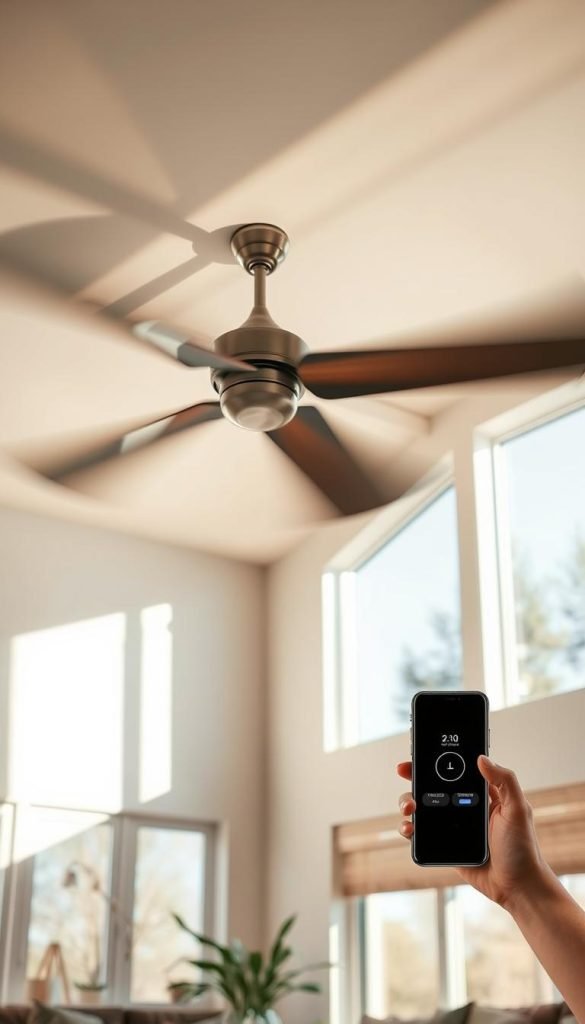
Seasonal airflow is easiest when direction is visible and one tap away inside the vendor app. That keeps changes quick and safe, no ladder needed.
Tap-to-reverse in HunterSMART and Hinkley apps
In HunterSMART the toggle sits under Advanced. Slide it to green for winter mode or to grey for summer. Hinkley shows a direction slider you move for the same result.
When to use each direction for better comfort and efficiency
- Save time: I reverse in the app so I never reach for the housing switch.
- Summer: set counterclockwise to push air down and feel cooler.
- Winter: use clockwise to gently recirculate warm air near the ceiling.
- Add the change to a seasonal scene so the operation is automatic.
- Verify by standing beneath the ceiling fan to confirm airflow direction.
- Group multiple fans on the same page so all rooms switch together.
“Keep direction in your favorites for quick adjustments during shoulder seasons.”
Lighting matters: dimming, LED compatibility, and scenes
Good lighting turns a simple room into a comfortable, usable space at any hour.
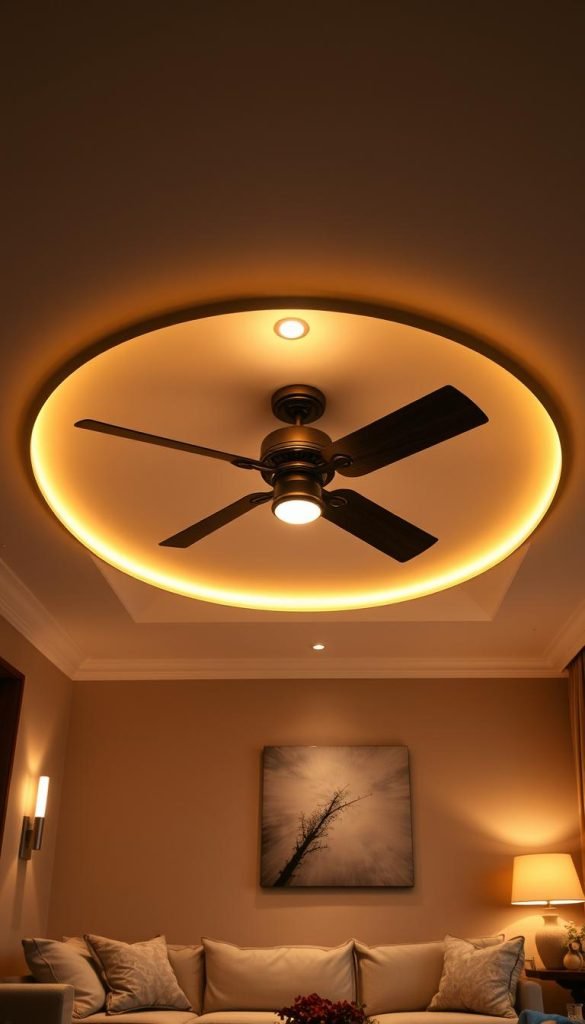
In-app dimming is the easiest way to tune mood and avoid glare. I enable dimming first in my vendor app and watch for confirmation beeps.
HunterSMART uses the Advanced menu. Enable “Set Light Dimming” and listen for two short beeps; the unit sets to 50%. Turning it off gives three beeps and returns to 100%.
Fansio requires dimmable bulbs or incandescent types. Also confirm the pull‑chain light is On so the module can modulate brightness.
Practical checks and scenes
- I disable dimming on the remote, then re-enable in the app to resync when control fails.
- I choose dimmable LEDs the maker specifies to avoid flicker and poor low‑end performance.
- I save scenes—20% after 10 p.m., brighter for reading—and map them to voice routines.
| Issue | Quick action | Result |
|---|---|---|
| No dim response | Disable remote dim, re-enable in app | Resyncs control paths |
| Flicker at low | Swap to listed dimmable LED | Smoother dim curve |
| Light not adjustable | Ensure pull‑chain is On | App can modulate brightness |
Installation paths: smart out of the box or retrofit your current fan
Installation choices split into two clear paths: buy smart-ready or retrofit your existing fixture. I explain what each route means for setup, canopy space, wiring, and the final product experience.
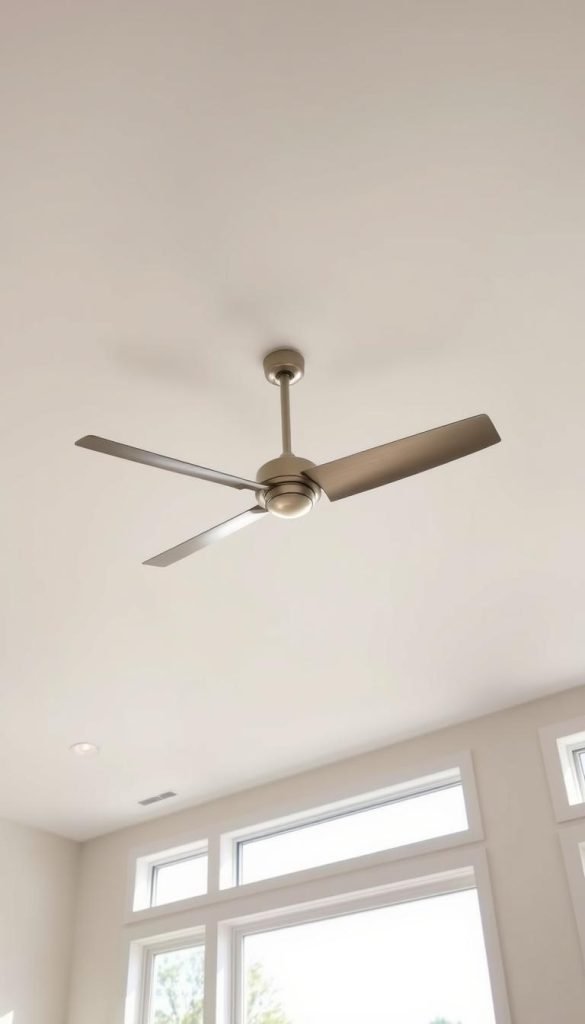
HunterSMART and Hinkley 6-speed DC — ready to connect
These models arrive prepped for network pairing. After standard mounting I follow the vendor instructions, pair the remote (if included), then add the fan to the app and voice assistant. Minimal wiring changes mean faster installation and fewer surprises.
Hinkley 3/4-speed — add an accessory receiver
For existing fixtures, Hinkley offers a canopy-mounted receiver that makes the fan smart without replacing the whole unit. Confirm there is enough space in the canopy before you order the accessory.
Fansio universal receiver and Wi‑Fi remote
Fansio fits many “dumb” fans and includes a Wi‑Fi remote. After power loss re-sync using High+Low or LEARN for 5 seconds. If needed, perform the factory reset: five cycles of 3s off/3s on until the light blinks, then re-provision.
Pull-chain, wiring, and safety basics I watch for
- Set pull chains to fan High and light On so the receiver can control both.
- Kill power at the breaker, label any wires you disconnect, and follow the included instructions.
- Pair remote first, then app, then voice assistant; test each step so you know where to troubleshoot.
Controls I actually use: app, remote, and voice commands
Daily comfort comes down to what I can reach fast. I use the vendor app for fine tuning, a handheld remote for instant changes, and voice for hands-free tasks. Each method has strengths during normal operation and after interruptions like power loss.
App sliders for speed, light, and direction
In practice: the HunterSMART app gives me a speed slider, light on/off plus dimming, and a direction toggle under Advanced. I enable audio feedback so two beeps confirm dimming on and three beeps confirm off — that small cue saves time.
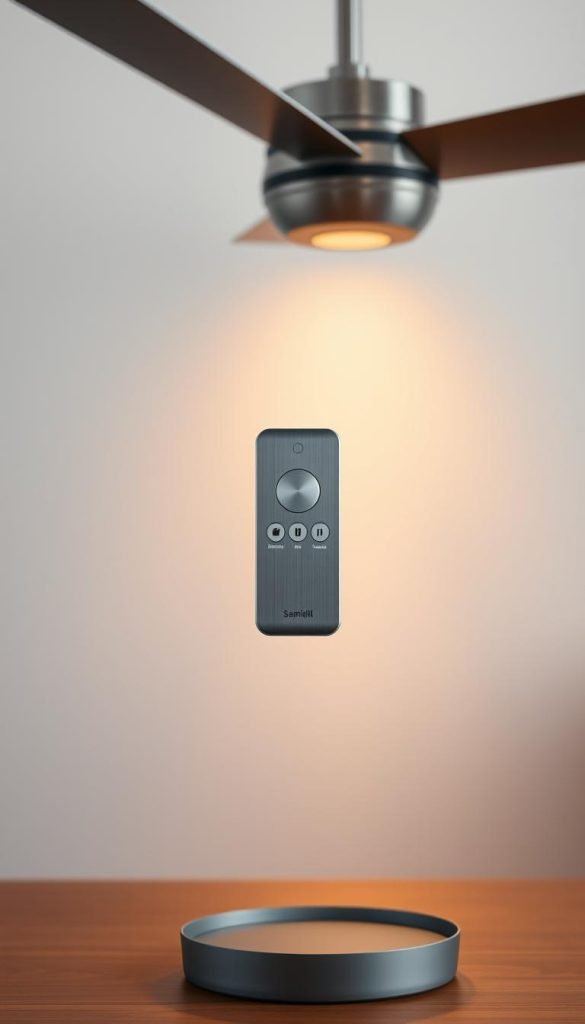
Remote convenience and re-sync after surges
I keep the handheld remote at my bedside for quick, no-phone adjustments. After a power surge I re-sync in under a minute: power cycle and hold High+Low (or LEARN) for five seconds. For stubborn faults, the factory reset with five 3s power cycles fixes most issues.
Hands-free comfort with Alexa, Google Assistant, and Siri
I use voice when my hands are full: commands like “set fan to 50%,” “turn on light,” or “reverse fan” work best if the device name is short and natural. If voice stops after a rename, I re-enable the Alexa skill or relink Google from the vendor page.
“Keep essential controls on your phone home page for two-tap access.”
Automations that make a difference: schedules, timers, and scenes
Automations let machines handle routine comfort while I focus on other things. I rely on smart schedules and scenes to keep temperatures steady and lights pleasant without extra effort.
Grouping and shared access: In the Hinkley app I group multiple fans so one command sets speed and light across an open living area. I also share app access with family so anyone can change settings without retraining.
Useful modes and safety features: Fansio’s Nature Breeze varies fan power for a natural feel. Safe Home simulates occupancy when I travel. Walk Away Light Delay gives 60 seconds of light so leaving a room is safer.
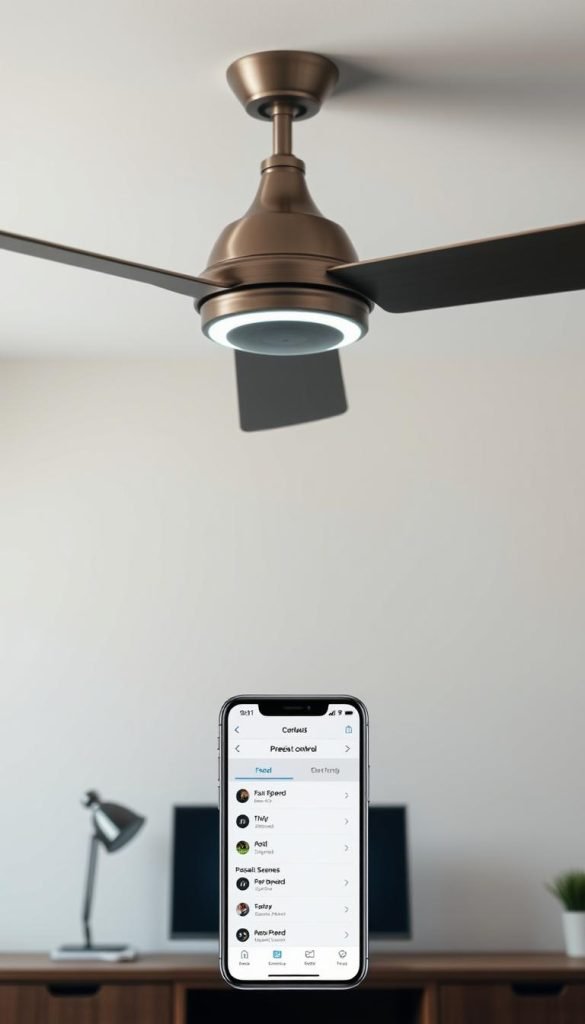
Scenes, geo-triggers, and seasonal routines
I build a Dusk scene that dims lights and a Winter scene that reverses direction and sets low circulation speed. HunterSMART supports geo-tracking, so my Return Home routine fires the fan when I pull into the driveway on hot days.
- I schedule gentle overnight speeds that ramp down as outside temps fall to save energy.
- I add timers for bathrooms and laundry so the fan or light won’t run all day.
- I keep a short list of favorite scenes to duplicate when I add another room.
“Well-designed automations turn manual chores into background comfort.”
| Feature | Example | Benefit |
|---|---|---|
| Grouping | Hinkley multi-fan groups | Consistent speed and light across large spaces |
| Simulated occupancy | Fansio Safe Home | Deters intruders while away |
| Timed delay | Walk Away Light Delay (60s) | Safe exit after flipping switch |
| Geo-trigger | HunterSMART Return Home | Comfort on arrival without manual control |
Sizing your fan for the room and matching your design
A well-sized fixture keeps airflow even and the design balanced in any room.
Blade span matters. I match span to room dimensions so the fan moves air to seating zones without overpowering small spaces.
Ceiling height steers the mount choice. For low ceilings I pick a low-profile profile; for taller spaces I use a downrod to keep clearance safe and airflow effective.
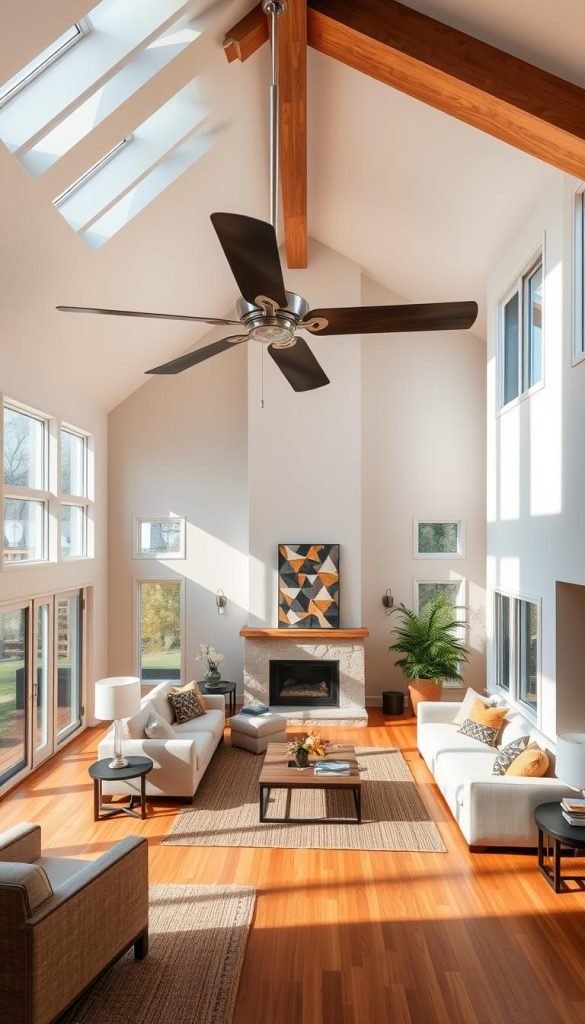
Blade span, ceiling height, and style to fit your space
Design and finish should complement lighting and trim. HunterSMART offers various styles and Hinkley provides modern, adaptable lines with 6-speed DC motors and accessory-ready options for different ceiling heights.
- I review airflow claims like SureSpeed and choose models proven in similar rooms.
- I check for sloped ceiling support if my space is vaulted.
- I keep color and finish consistent across rooms when buying multiple ceiling fans so the home feels cohesive.
| Room size | Recommended blade span | Mount type | Notes |
|---|---|---|---|
| Small (up to 100 sq ft) | 36″–44″ | Low-profile | Avoid overpowering small spaces |
| Medium (100–225 sq ft) | 44″–52″ | Standard downrod | Balanced airflow to seating areas |
| Large (225+ sq ft) | 52″+ | Longer downrod | Use multiple units or high-performance models |
“Save the product page specs for blade span and mounting options so installation day goes smoothly.”
Support, warranty, and shipping: what I check before buying
Good post‑sale help often matters more than a flashy product page.
First, confirm clear troubleshooting information. Scan support pages for 2.4 GHz checks, hotspot provisioning, power cycle steps, and long‑beep remote resets. HunterSMART, Fansio, and Hinkley each list those instructions so you can act fast after a surge.
Next, verify warranty terms and accessory stock. I look for replacement remotes and receivers, plus how to open a service claim if a module fails.

Troubleshooting essentials: resets, 2.4G checks, and support pages
- Bookmark the exact page with reset steps and model serial locations.
- Test support chat or phone to see response time and helpfulness.
- Confirm guides for linking to Alexa, Google, and Apple and note quirks after a name change.
Shipping policies, accessory availability, and app update cadence
Check shipping costs and timelines for large items and installer windows. Review app update cadence and changelogs so platform support is active.
| Item | Why it matters | Where to check |
|---|---|---|
| Shipping | Timing and cost for large product delivery | Vendor shipping page |
| Warranty | Service process if a module fails | Product warranty details |
| Accessories | Remote and receiver availability | Support/store page |
| App updates | Stability and new features | Changelog on app page |
“Keep model name and serial handy for faster support.”
Create a shortlist: comparing features, price, and setup fit
Before I pick a final product, I narrow options so the final call is fast and confident. A short list keeps focus on real tradeoffs: direction control, platform matches, and how much time setup will take.
My comparison criteria: direction in-app, platform support, and install ease
Must-have checklist:
- In‑app reverse toggle, clear exposure of direction and brightness in every interface.
- Platform compatibility: HomeKit, Alexa, and Google support without hacks.
- 2.4 GHz pairing and reliable dimming with listed LED bulbs.
- Canopy space and wiring notes for add‑on receivers vs built‑in smart modules.
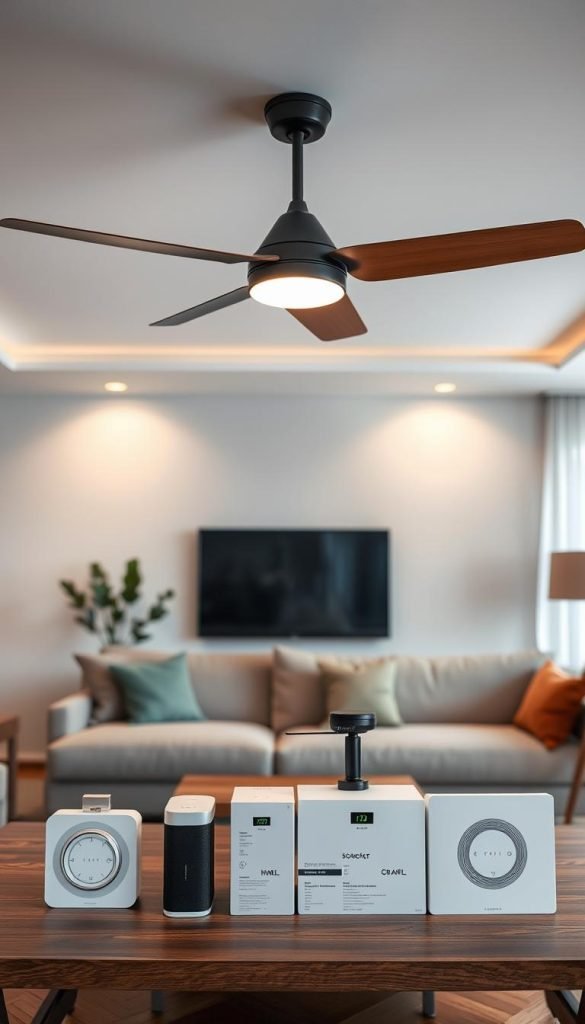
Feature vs install: Built‑in smart models like HunterSMART and Hinkley 6‑speed DC save time and usually include remotes. Add‑ons — Hinkley accessory receivers or Fansio universal kits — keep existing fixtures but need canopy checks.
| Option | Key benefit | When to pick |
|---|---|---|
| HunterSMART | In‑app reverse + HomeKit/Alexa/Google | New install, tight platform integration |
| Hinkley 6‑speed DC | Smooth DC motor, grouping and timers | Style + performance focus |
| Fansio kit | Nature Breeze, Safe Home, Walk Away Light Delay | Retrofit older units |
Final tips: Compare product profiles—motor type, speeds, and airflow features like SureSpeed or breeze modes. Check support pages and reset steps, then weigh price against included accessories. I usually limit my shortlist to three fans so the final decision is simple.
Remote and receiver setup guide
Conclusion
Conclusion
In closing, keep three simple priorities front and center: pick a smart ceiling fan with an in‑app direction toggle, verify 2.4 GHz pairing, and confirm support for your preferred devices like Alexa, Google, or HomeKit.
Test every control path—app sliders, voice commands, and the remote—so direction, speed, and fan light responses work before you finish installation. Match blade span, profile, and color to the room so design and airflow align.
Tip: choose dimmable LEDs, prefer DC motor models for quiet speed steps, and use grouping plus seasonal scenes (reverse for winter) to automate comfort. Make a short list, check support pages for resets and re‑sync steps, and try a starter routine: turn fan on arrival, dim light at dusk, and enable a winter scene that reverses direction.